
How to Use Terabox: Setup, Uploading, and Sharing Explained
Using TeraBox is more than simply saving files online. Once your account is set up, you can upload photos, videos, and documents, arrange them into folders, and share them when needed. Knowing where each option is makes everyday file management much easier.
From creating your account and uploading your first files to organizing storage, sharing content, and using useful features, this article covers the main things you need to know. The steps are kept simple so you can start using TeraBox without any confusion.
How to Install TeraBox on Mobile and Desktop
How to Install TeraBox APK on Mobile
- Download the TeraBox APK file on your Android phone and let the download finish.
- Open Settings and allow your browser or file manager to install apps from unknown sources if needed.
- Go to your Downloads folder and tap the APK file.
- Follow the prompts and wait for the installation to complete.
- Open TeraBox, then sign in to your account or create a new one.
How to Install TeraBox on Windows and Mac
- Download the TeraBox desktop installer that matches your computer.
- Open the downloaded setup file and start the installation.
- Follow the instructions shown by the installer and choose a location if asked.
- Launch TeraBox once the setup is finished.
- Sign in with your existing account to access your stored files and manage your cloud storage.
Understanding the Home Screen
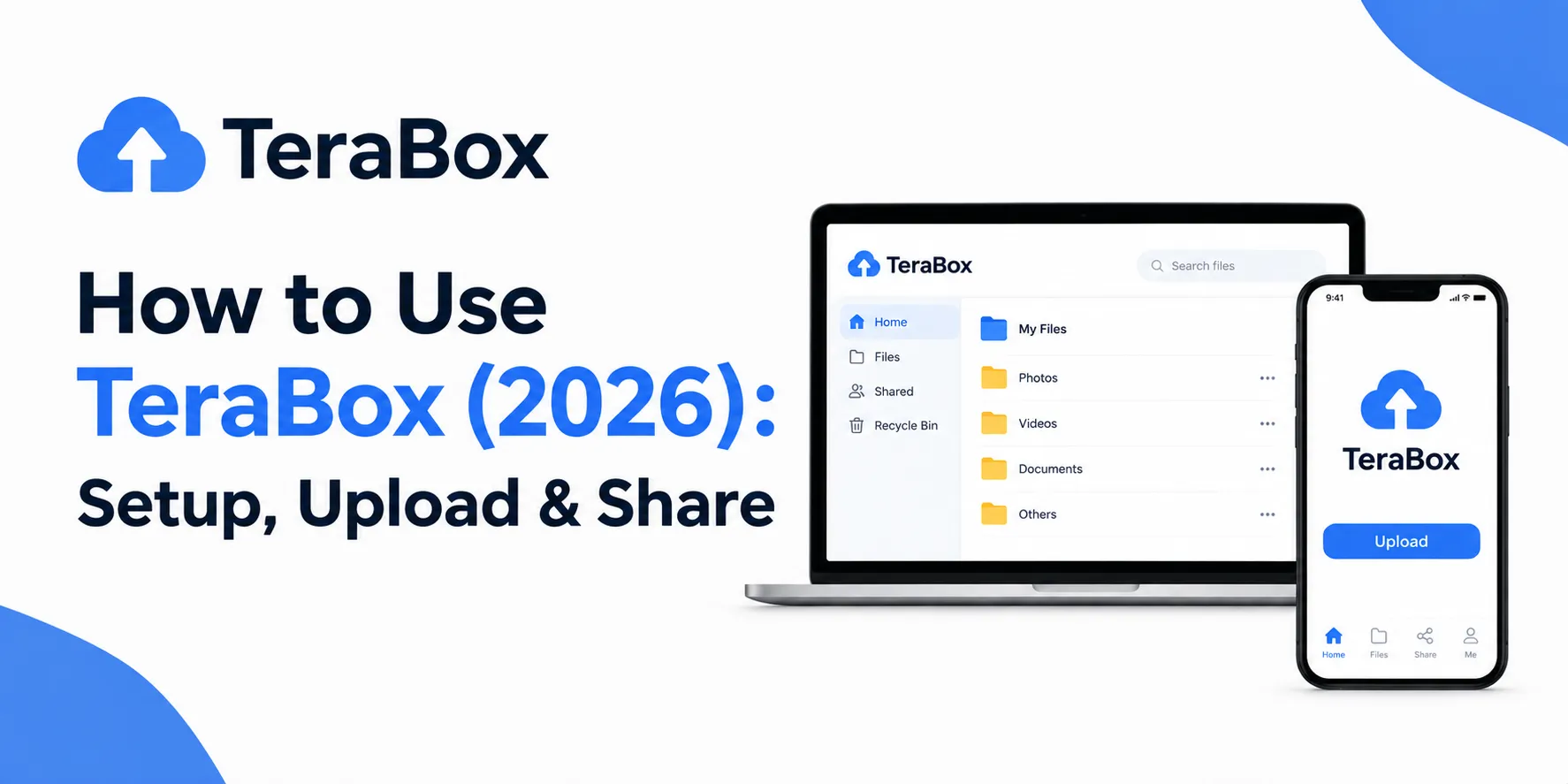
After logging in, the home screen displays current storage usage, recent uploads, and shortcuts for uploading or sharing. Files are grouped into categories like Photos, Videos, Documents, and Others. This makes it quicker to switch between file types than scrolling through one long list. The layout remains the same across devices, so switching from phone to desktop is easy.
How to Upload Files to TeraBox
Uploading from Android
- Open the TeraBox app and tap the + button on the main screen.
- Select the photos, videos, or documents you want to save.
- Choose an existing folder or create a new one for the uploaded files.
- If you want photos and videos to save automatically, enable automatic backup from your account settings.
Uploading from a Computer
- Launch TeraBox on your Windows or Mac computer.
- Click Upload and select the files or folders you want to store.
- You can also drag items from your computer and drop them into the TeraBox window.
- Select several files at once when you need to move a large batch of documents, photos, or videos.
- For bigger collections, putting related files into a ZIP or RAR archive can make them easier to upload and organize.
Organizing and Finding Files
Keeping things organized becomes important fast once storage starts filling up:
Sharing Files and Collaborating
Sharing in Terabox is more than just a link. When you select a file or folder and tap Share, it creates a link. You can send this link through any messaging app or email. You can also set it to expire after a certain time. Plus, you can adjust permissions so recipients can only view the file without editing or downloading it.
For group projects, shared folders allow multiple users to upload, edit, and comment on the same files. This setup is simpler than dedicated collaboration tools, making it great for small teams or family sharing.
The Recycle Bin and Recovering Deleted Files
Deleted files don’t vanish immediately. They stay in the recycle bin for 10 days on the free plan and 30 days for Premium users. This gives you a chance to recover files deleted by mistake. After this period, you can’t recover them unless you have a separate backup. If you want to completely leave the service, check out How to Delete Terabox Account for the steps.
Premium Features Worth Knowing About
Premium offers several advantages beyond the free 1TB. These include faster upload and download speeds, a password-protected vault for sensitive files, online ZIP file decompression without downloads, and an ad-free interface. The free plan is great for casual users, but ads between screens and before videos are common complaints. For tips on reducing ads without upgrading, see How to Turn Off Ads in Terabox.
Earning Free Storage Through Referrals
Terabox has a referral program that gives bonus storage or cash rewards for sharing the app. According to Terabox’s official blog, new users signing up through a referral link earn a small reward. You can also earn extra bonuses by sharing popular files based on their views. This isn’t a replacement for Premium, but it’s a great way to maximize the free tier without any cost.
Using Terabox Across Multiple Devices
Logging into the same account on your phone, tablet, and computer keeps everything synced automatically. A file uploaded from one device appears on all others without any extra steps. This is handy for anyone who takes photos on their phone and edits documents on a computer, as you don’t need to transfer files manually.
Common Problems and How to Fix Them
Frequently Asked Questions
Final Thoughts
Terabox offers more than most new users expect. It includes basic uploads, shared folders, automatic backup, and a helpful referral program. Taking a few minutes to set up automatic backup and organize folders early on can make a big difference. Many issues, like lost files, confusing shares, and full storage, stem from a few settings rather than true app limitations.